Eyesplits
Application Note #33
November, 2002

EyesplitsApplication Note #33 November, 2002 |
|
 |
 |
|
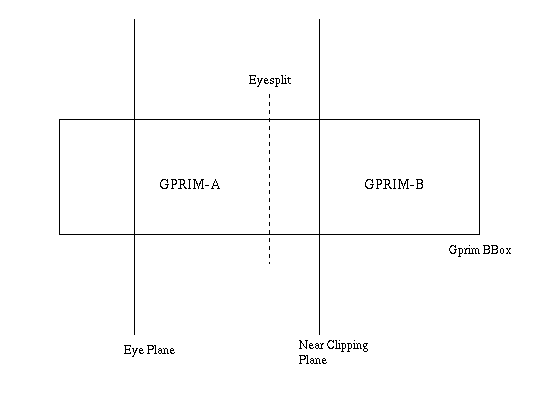
There can be cases where splitting the geometry until the bounding box is in front of the eyeplane produces an unreasonable amount of geometry. Ten eyesplits will produce 2^10 pieces of geometry (and each of these pieces may need further splitting to reduce the geometry to a size reasonable for dicing). For this reason the default eyesplit limit in PRMan is set to 10, meaning the geometry will not eyesplit more than 10 times. If the geometry splits more than the eyesplit limit number of times, no more eyesplitting will occur and PRMan will try to dice the geometry.
   version 3.04
   Declare "resource" "string"
   Option "searchpath" "resource" [".:@"]
   FrameBegin 1
   Format 640 480 1
   Display "teapot" "framebuffer" "rgba"
   ## ---This is a really poor choice for the near clipping plane---
   Clipping .00001 10000
   Projection "perspective" "fov" [54.4322]
   ScreenWindow -1 1 -0.75 0.75
   WorldBegin
        ShadingRate 1
        ShadingInterpolation "smooth"
        AttributeBegin
                ## The teapot is really close to the eyeplane
                Translate 0 0 -8.99999
                Surface "randomgridsurf"
                ReadArchive "teapot-geom"
        AttributeEnd
   WorldEnd
   FrameEnd
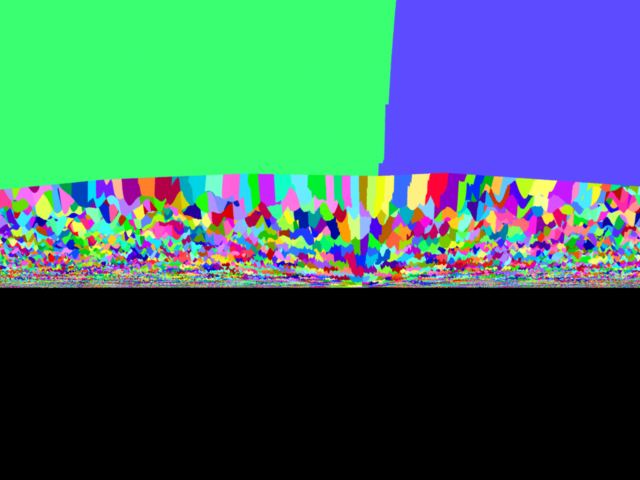
Because the near clipping plane is very close to the eye, it is more
difficult to split the geometry in such a way that the bounding box
of the two split pieces end up either completely behind or in front
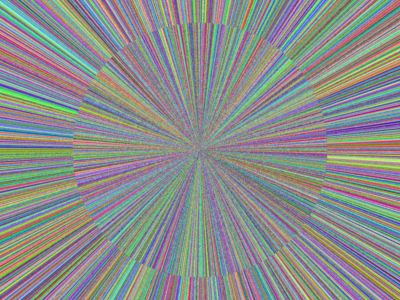
of the eyeplane. The image below shows the large number
of grids that result from this RIB file. If expensive shaders were
attached to this object, a significant amount of time and memory would
be expended trying to render this frame.
|
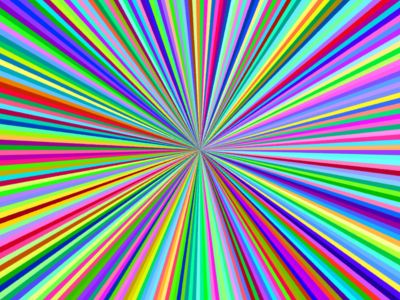
Option "limits" "eyesplits" [5]Since we won't split the geometry 10 times, but only 5 times, we will generate fewer grids that need to be processed. The image below shows the result of using a limit of 5.
|
   version 3.04
   Declare "resource" "string"
   Option "searchpath" "resource" [".:@"]
   FrameBegin 1
   Format 640 480 1
   Display "teapot" "framebuffer" "rgba"
   ## ---This is a really poor choice for the near clipping plane---
   Clipping 1 10000
   Projection "perspective" "fov" [54.4322]
   ScreenWindow -1 1 -0.75 0.75
   WorldBegin
        ShadingRate 1
        ShadingInterpolation "smooth"
        AttributeBegin
                ## The teapot is really close to the eyeplane
                Translate 0 0 -7.9
                Surface "randomgridsurf"
                ReadArchive "teapot.geom"
        AttributeEnd
   WorldEnd
   FrameEnd

|
 version 3.04
 Declare "resource" "string"
 Option "searchpath" "resource" [".:@"]
 FrameBegin 1
 ## 10 is too high
 Option "limits" "eyesplits" [7]
 Attribute "displacementbound" "sphere" [.8] "coordinatesystem" "current"
 Format 640 480 1
 Display "displacement" "framebuffer" "rgba"
 Clipping .1 1000
 Projection "perspective" "fov" [54.4322]
 ScreenWindow -1 1 -0.75 0.75
 ConcatTransform [0.997801 0.00515556 -0.0660731 0 2.90359e-10 0.99697 0.0777918
                  0 -0.0662739 0.0776207 -0.994778 0 0.394103 -0.690351 4.2613 1]
 WorldBegin
        ReverseOrientation
        ShadingRate 1
        ShadingInterpolation "smooth"
        Surface "randomgridsurf"
        AttributeBegin
                Attribute "identifier" "name" ["|nurbsPlane1|nurbsPlaneShape1"]
                ConcatTransform [1000 0 0 0 0 1 0 0 0 0 1000 0 0 .8 0 1]
                Opacity [1 1 1]
                Displacement "dispeye" "float kb" [.6] "float freq" [8]
                NuPatch 4 4 [0 0 0 0 1 1 1 1] 0 1 4 4 [0 0 0 0 1 1 1 1] 0 1
                 "Pw" [-0.5 -3.06152e-17 0.5 1 -0.5 -1.02051e-17 0.166667 1 -0.5 1.02051e-17
                       -0.166667 1 -0.5 3.06152e-17 -0.5 1 -0.166667 -3.06152e-17 0.5 1 -0.166667
                       -1.02051e-17 0.166667 1 -0.166667 1.02051e-17 -0.166667 1 -0.166667 3.06152e-17
                       -0.5 1 0.166667 -3.06152e-17 0.5 1 0.166667 -1.02051e-17 0.166667 1 0.166667
                       1.02051e-17 -0.166667 1 0.166667 3.06152e-17 -0.5 1 0.5 -3.06152e-17 0.5 1
                       0.5 -1.02051e-17 0.166667 1 0.5 1.02051e-17 -0.166667 1 0.5 3.06152e-17 -0.5 1]
        AttributeEnd
 WorldEnd
 FrameEnd
|
|
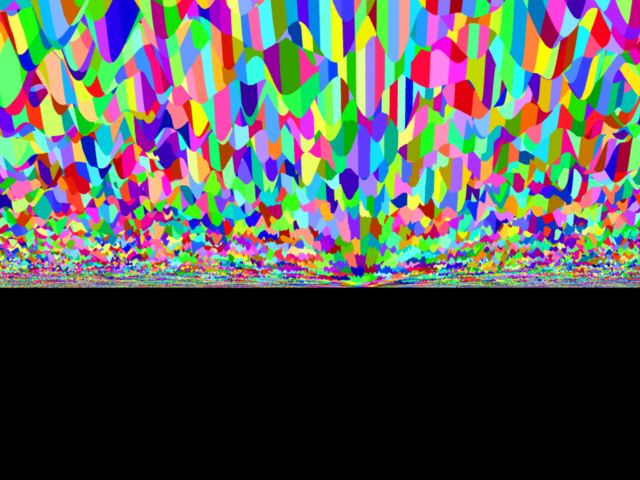
The RIB and image below illustrate the new eyesplit behavior. In this scene, a sphere is translating through the eyeplane at a fairly high rate of speed. The image on the right shows the result with the default eyesplit limit of 10 (don't try this at home without a fair amount of memory) and with a limit of 4. The image with a limit of 4 renders 40 times faster than the limit of 10 and consumes 1/500th the amount of memory.
 version 3.04
 Declare "resource" "string"
 Option "searchpath" "resource" [".:@"]
 FrameBegin 1
 ## 10 is too high
 Option "limits" "eyesplits" [4]
 Format 640 480 1
 PixelSamples 17 17
 Shutter 0 1
 Display "motionblur" "framebuffer" "rgba"
 Clipping 1 10000
 Projection "perspective" "fov" [54.4322]
 ScreenWindow -1 1 -0.75 0.75
 WorldBegin
        ShadingRate 1
        ShadingInterpolation "smooth"
        AttributeBegin
                MotionBegin [0 1]
                  Translate 0 0 5
                  Translate 1 -1 -.1
                MotionEnd
                Surface "randomgridsurf"
                Sphere 1 -1 1 360
        AttributeEnd
 WorldEnd
 FrameEnd
 |
 |
Option "limits" "gprimsplits" [-1]If this option is set to a positive value it controls how often a primitive will split after it has reached the eyesplits limit. Once an object reaches an eyesplit limit, the split criteria is no longer based on whether the bounding box is behind the eye, but on how large the bounding box is when projected into screen space. (Objects that have reach the eyesplits limit have a different criteria for projecting the object into screen space). Increasing this value beyond the default of 2 can yield better shading results for displacements that go through the eyeplane.
The other option is useful in the situation where an object seems to be splitting a lot, but not because of eyesplits, but instead because of "normal" splits. This case is rare, but it can happen. In this case, the follow option may help:
Option "limits" "nearhither" [.01]This option sets the distance from the eye that is actually used to determine if geometry is behind the eye. It is a ratio of the distance between the eye and the near clipping plane. A value of 0 would mean the eyeplane is used to determine when something eyesplits, and value of 1 means the near clipping plane would determine when something eyesplits. Normally a value near the eye is best. However if geometry is experiencing a large number of "normal" splits, setting this threshold higher can cause the geometry to "eyesplit". The advantage of having the geometry eyesplit is that the number of splits could then be controlled with the eyesplits limit attributes and options.